

Nothing in the wiki matches that search.

Minecraft Bedrock addon · Release 1.0.0
Admin Core Wiki
Everything you need to run a Bedrock server with Admin Core: installing it, setting it up, and what every module, command and permission does.
Admin Core is around 12 addons combined into one. Essentials, player tools, server transfers, block logging and rollbacks, extra worlds, protected regions and land claims, world editing, anti-cheat, clans, kits, jobs and quests, logs and a full rank system all live behind one menu, and they all work together: one permission system, one economy and one log.
- One menu for everything. Open it with the Admin Core Cog item or
/ac. Each module has its own themed menu and its own tool item. - Switch modules on and off live from the Modules screen. There's no
/reload, and a module's data is kept while it's off. - One rank system (RanksCore) controls every button, command and tool in every module.
- Players only see what they can use. Staff-only buttons are shown in red.
- No commands needed. Every feature has a menu. The commands are there for people who prefer typing.
- Controller friendly. LB/RB (L1/R1) flip pages in every menu.
Installing
Requirements
- Minecraft Bedrock 1.26.50 or newer (client and server).
- The world's Beta APIs experiment turned on. Admin Core uses the beta script APIs, so it won't load without it.
- Both packs: the Behavior Pack and the Resource Pack. The
.mcaddoninstalls both.
Single-player or Realms
- Download
AdminCore_1.0.0.mcaddonand open it. Minecraft imports both packs. - Edit the world. Under Behavior Packs, activate Admin Core; the resource pack is added with it.
- Under Experiments, turn on Beta APIs.
- Load the world and open the menu with
/ac.
Dedicated server (BDS)
- Unzip the
.mcaddon(it's a zip) into its two packs, and copy them into the server'sbehavior_packsandresource_packsfolders. - Add both packs to the world's
world_behavior_packs.jsonandworld_resource_packs.json, or add the addon to the world in single-player first and upload that world. - Turn on Beta APIs for the world (set it in single-player before uploading, or in
level.dat). - Give yourself operator (
op <name>in the server console) and restart.
Upgrading from an Alpha or Beta
First-time setup
Who runs Admin Core? World operators have full access automatically. Anyone else can be given owner access with the admincore.owner permission node in RanksCore. It is not "the first player to join".
- Open the menu with
/ac. Use the Get Cog button at the top right to get the Admin Core Cog item, which opens the menu when you use it. - Pick your modules. Open Modules at the bottom of the main menu and turn off anything you don't need. Changes apply straight away.
- Set up ranks. Open RanksCore, create your groups (for example Member, VIP, Moderator, Admin) and give each one the permission nodes it needs. Players only see buttons and commands their rank allows.
- Set spawn and warps in Essentials (
/setspawn,/setwarp <name>). - Protect spawn with a WorldGuard region (WorldGuard), and set up the economy, shop and claims if you use them.
- Coming from other addons? Use Data Migration to bring over homes, warps, ranks, claims and more.
The main menu & items
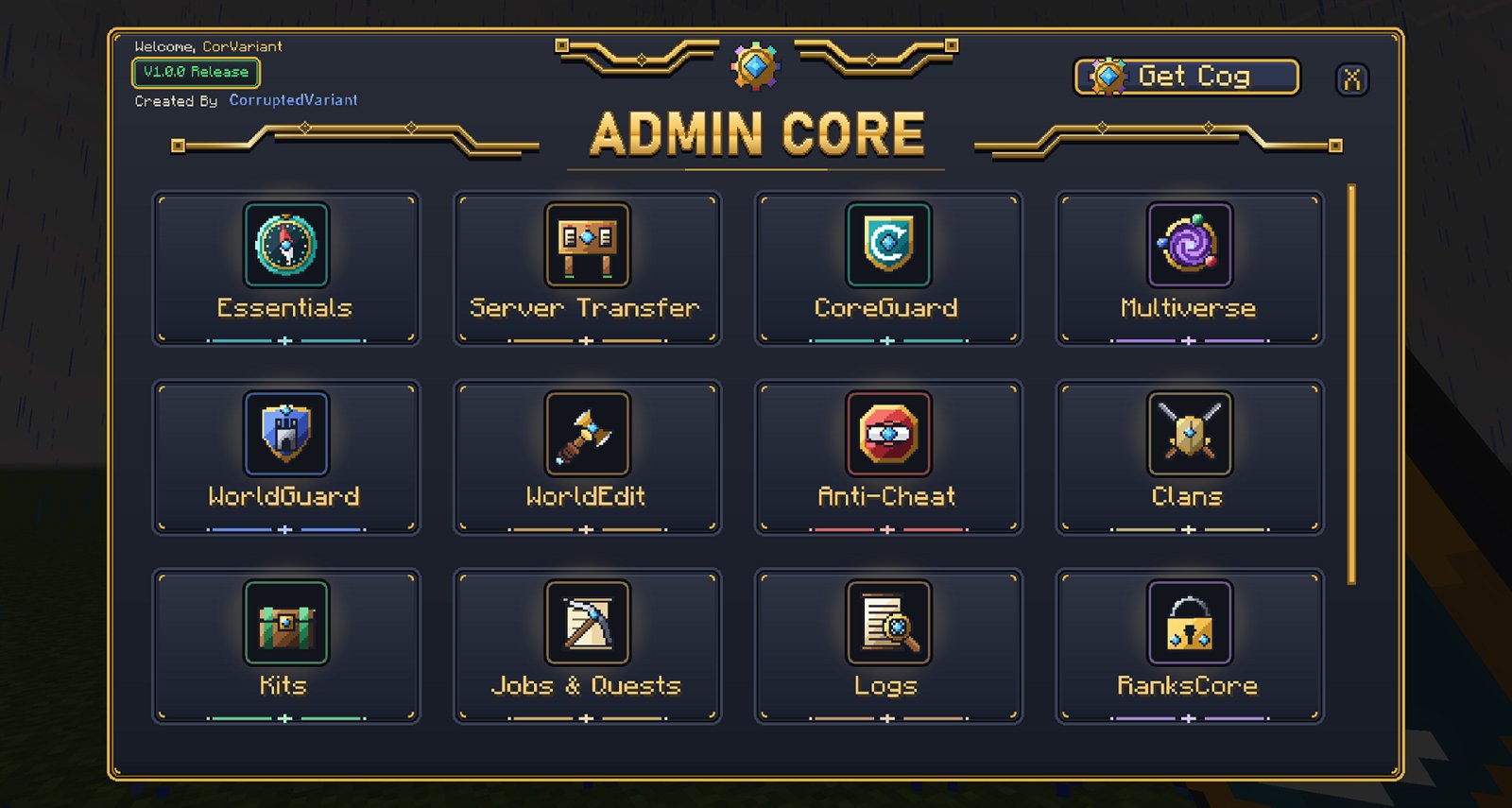
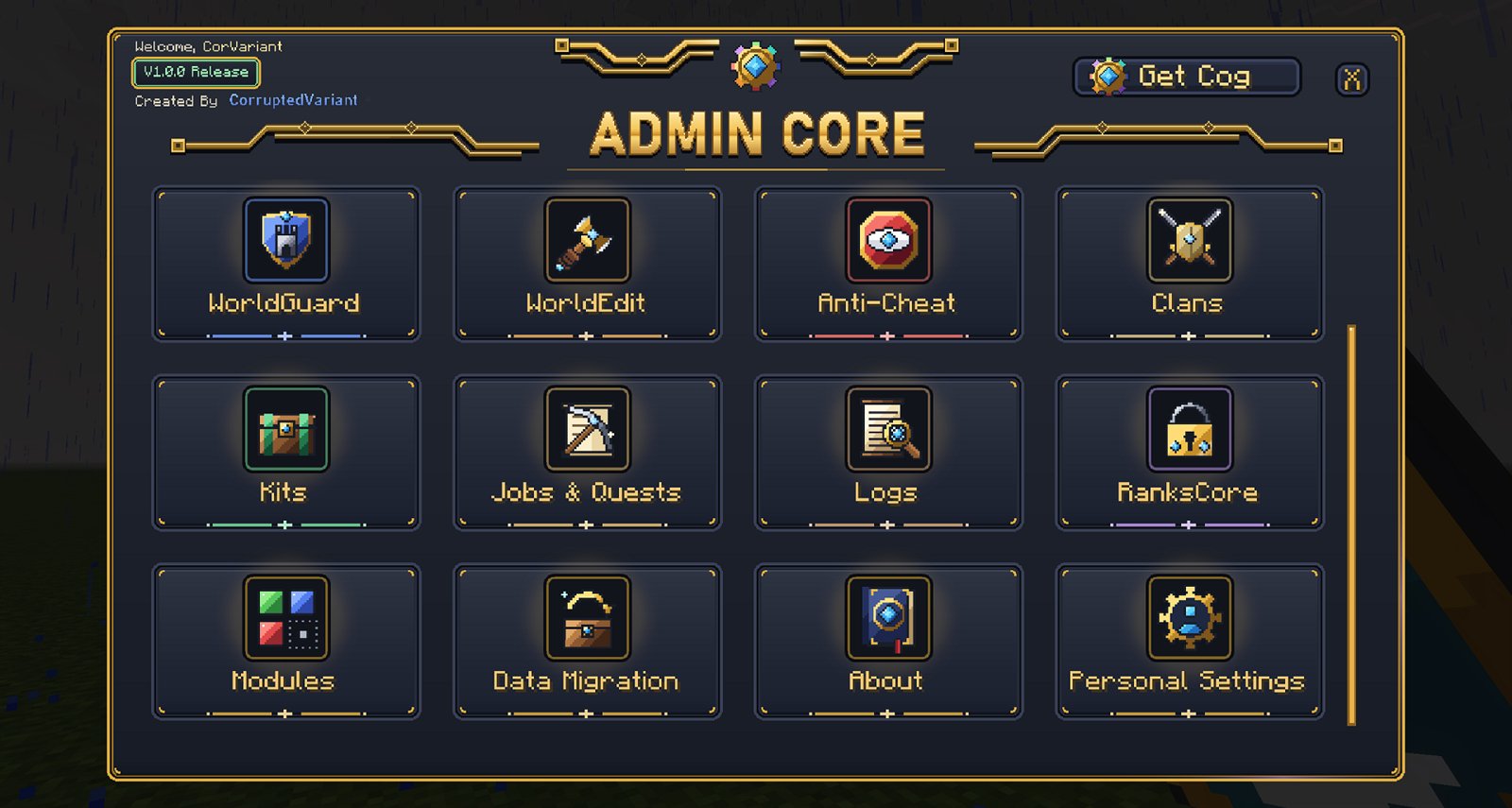
The main menu shows a tile for every module that is turned on and that you have access to. Scroll down for the lower row: Modules, Data Migration, About and Personal Settings.
Items
Each module has its own tool item with an animated icon. Using a tool opens that module's menu or does its job, like the WorldEdit wand selecting corners.
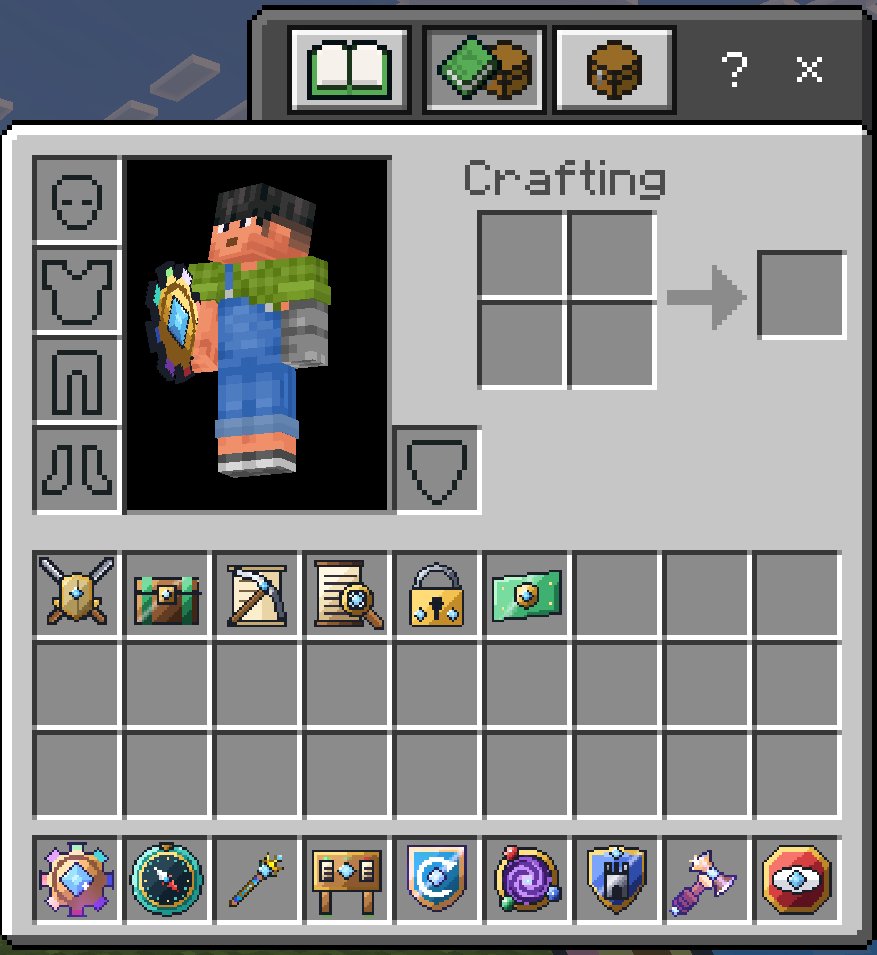
- Admin Core Cog: opens the main menu
- Essentials Compass: Essentials menu
- Extended wand: player tools
- Server Transfer Tool: server list
- CoreGuard Shield: block inspector
- Multiverse tool
- WorldGuard tool
- WorldEdit Selection Wand
- Anti-Cheat tool
- Clans, Kits, Jobs, Logs, RanksCore tools
- Banknote: money you can hold and trade
Tools are protected: they can't be lost to normal item tricks. You can turn off item and menu animations in Personal Settings.
How commands work
- Slash commands work everywhere and appear in the command list as you type:
/ac,/home,/rg,/mv,/clanand so on. Cheats don't have to be on: Admin Core checks permissions itself. - Name clashes. If a command's name is already used by vanilla Minecraft (
/tp,/msg,/kick,/gamemode…) or by another module, the module's short name is put in front:/ess_tp,/ess_msg,/ess_kick,/stt_help. Typing/in game shows the exact names. - Chat commands. Some modules also accept commands typed in chat with a prefix: Essentials
!(for example!home base), Extended Essentials#and Server Transfer$. Owners can change the prefixes. - Built-in help:
/esshelp,/wehelp,/rg help,/mv help,/cg help,/clan help,/pcx help,/anticheat help.
In the tables below, <required> and [optional] mark arguments. A command marked staff needs the matching permission node.
Essentials
The everyday server toolkit: travel, homes and warps, messaging, an economy with shops and auctions, duels, holograms, graves and moderation. Each part (homes, warps, TPA, money, shop…) is a system an owner can turn on or off in the Essentials settings.
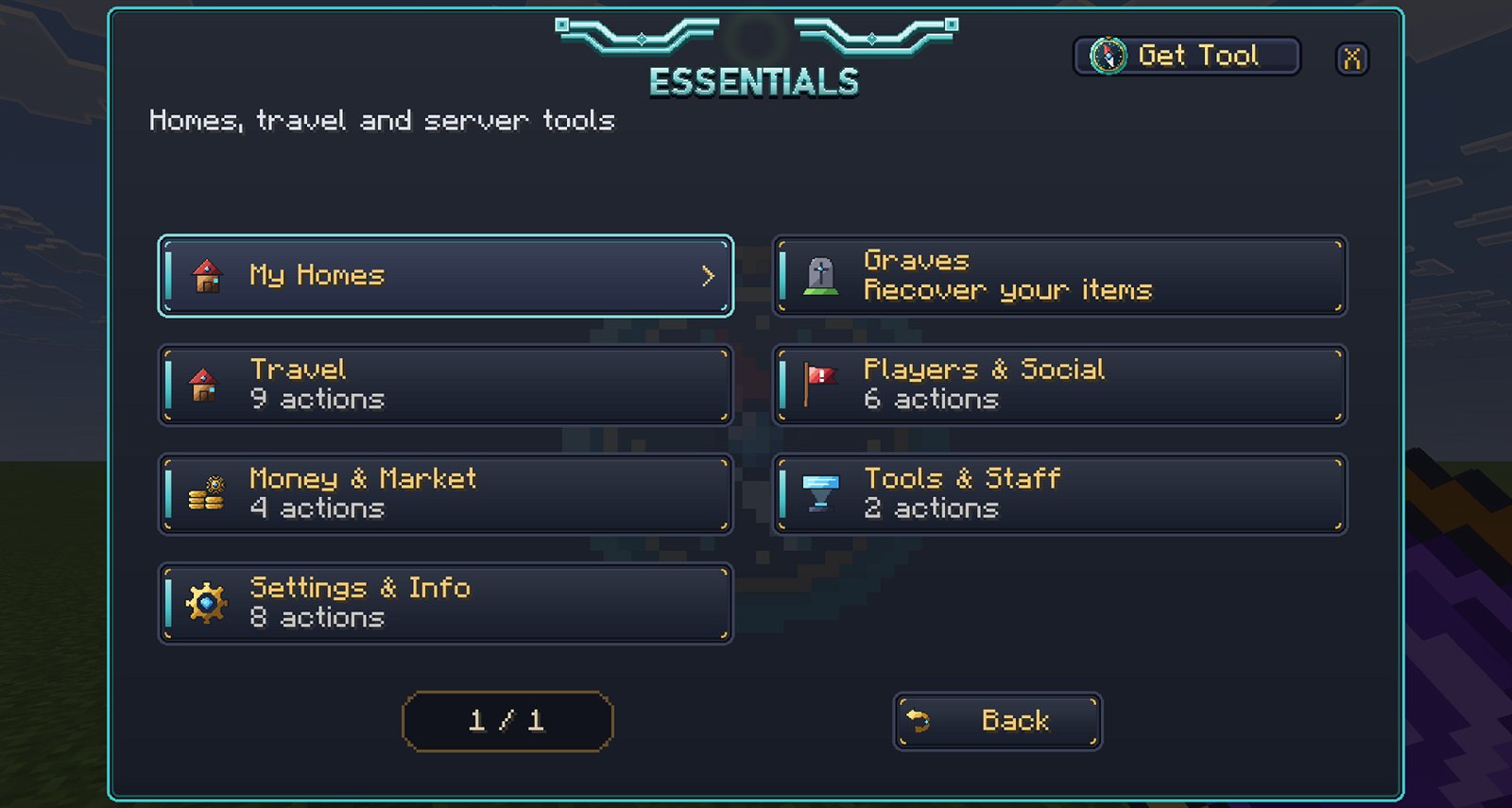
Travel
/home <name> | Go to one of your homes. |
/sethome <name> · /delhome <name> · /listhome | Manage homes. How many homes you can have is a rank option (essentials.home.limit). |
/bed | Go to your bed. |
/warp <name> · /listwarp | Server warps. |
/setwarp <name> · /delwarp <name> staff | Create and delete warps. |
/spawn · /setspawn staff | Go to spawn, or set it where you stand. |
/tpa <player> · /tpahere <player> | Ask to teleport to a player, or ask them to come to you. |
/tpaccept [player] · /tpadeny [player] · /tpacancel | Answer or cancel requests. |
/tpasetting | Turn incoming teleport requests on or off. |
/back | Return to where you were before your last teleport or death. |
/rtp | Random teleport into the wild. |
/compass | Get the Essentials Compass. It points to your targets and has a few secrets. |
Players & social
/ess_msg <player> <message> · /reply <message> | Private messages. |
/block <player> · /unblock · /blocklist | Stop a player messaging or requesting you. |
/playerlist · /info · /tps | Who's online, server info and performance. |
/duel <player> [wager] · accept · deny · forfeit · toggle | Challenge someone to a duel, optionally for money. |
/graves | Your graves. When you die, your items are kept safe in a grave you can return to. |
/ranks · /rankshop | See the ranks, and buy ranks with money. |
/claims · /claimwand | Your land claims (see Claims). |
/calculate <expression> | A quick calculator. |
Money & trading
/money [player] · /topmoney [page] | Balances and the richest players. |
/pay <player> <amount> | Send money. |
/withdraw <amount> · /redeem | Turn money into a Banknote item, and turn a held banknote back into money. |
/shop · /sell [hand|all] | The server shop, and selling items to the server. |
/auctionhouse [add|view|mine] | The player auction house. |
/order [create <item> <count> <price each>] | Buy orders: ask for items, and other players fill them. |
/economy <give|take|set|reset> <player> [amount] staff | Manage balances. |
/mobmoney [mob] [reward|min-max] staff | Money rewards for killing mobs. |
/shopsetting · /sellsetting staff | Set up the shop and sell prices. |
Moderation staff
/adminpanel | The moderation menu. |
/report <player> <reason> · /reports | Anyone can report a player; staff review reports. |
/warn <player> <reason> · /unwarn <player> [number|all] · /warnings [player] | Warnings. |
/mute · /tempmute <player> <duration> · /unmute | Mutes. |
/ban · /tempban <player> <duration> · /unban · /ess_kick | Bans and kicks. Each takes an optional reason. |
/history [player] | A player's full record. |
/inventorysee <player> | Look at a player's inventory (read-only). |
/ess_tp <player> · /tphere <player> | Staff teleports. |
/broadcast <message> · /log | Announce to everyone; view the moderation log. |
/holograms | Place and edit floating text holograms. |
/setting [key] [value] | Change Essentials settings (also in the menu). |
Permission nodes: essentials.command.<command> for each command, plus staff nodes such as admin.ban, admin.mute, admin.warn, admin.kick, admin.teleport, admin.invsee, admin.economy, admin.warps, admin.spawn, admin.shop, admin.settings, hologram.admin.
Extended Essentials (Player Tools)
The player tools from the standalone Extended Essentials addon. They live inside Essentials under Players & Social, and keep their own commands. Each tool has its own permission, so you choose which ranks get fly, god mode and so on.
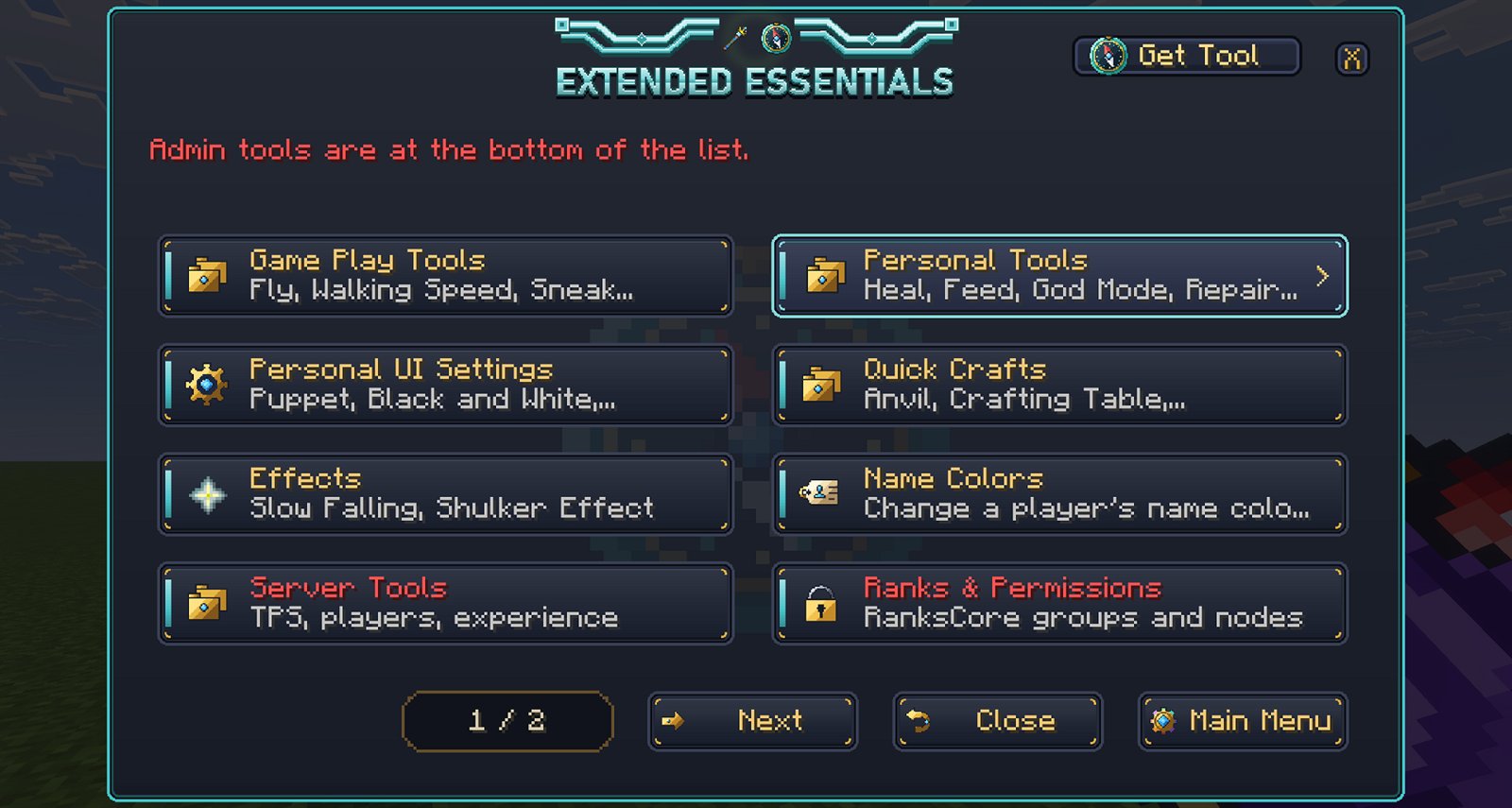
/fly | Toggle flight, even in Survival. Needs the world's Education Edition option on. |
/god [player] · /heal [player] · /feed [player] | Invulnerability, full health and full hunger. Using them on someone else is for admins. |
/repair | Repair everything you're carrying. |
/speed <1-10> [player] · /sneakspeed <0-10> [player] | Walking/flying speed, and bonus speed while sneaking. |
/ess_gamemode <mode> | Switch to a game mode your rank allows. Sneak + Jump also cycles game modes; owners can turn that shortcut off. |
/nickname <name|clear> · /namecolor <player> <color> | Nicknames (in chat and above your head) and name colours. |
/playtime [player] · /playtimescoreboard · /playtimeactionbar · /setplaytime | Lifetime and session playtime, a sidebar leaderboard and an action-bar display. |
/anvil · /ctable · /stonecutter · /enderchest | Quick crafting stations you can use anywhere. |
/slowfalling · /shulkereffect | Toggle Slow Falling or Levitation. |
/exp <player> <give|set|reset|look> [amount] | Manage experience levels. |
/deathlocation [player] | Where you last died. |
/lightningwand · /breakbedrock | Fun admin modes: the wand strikes lightning; a netherite pickaxe breaks bedrock. |
/getwand | Get the Extended Essentials wand. |
Server Transfer
A server list players can browse and transfer to, with public, staff-only and owner-only servers. Players can keep their own private server lists, and owners can set up transfer announcements and a welcome message. Transfer boards can be mounted flush on walls.
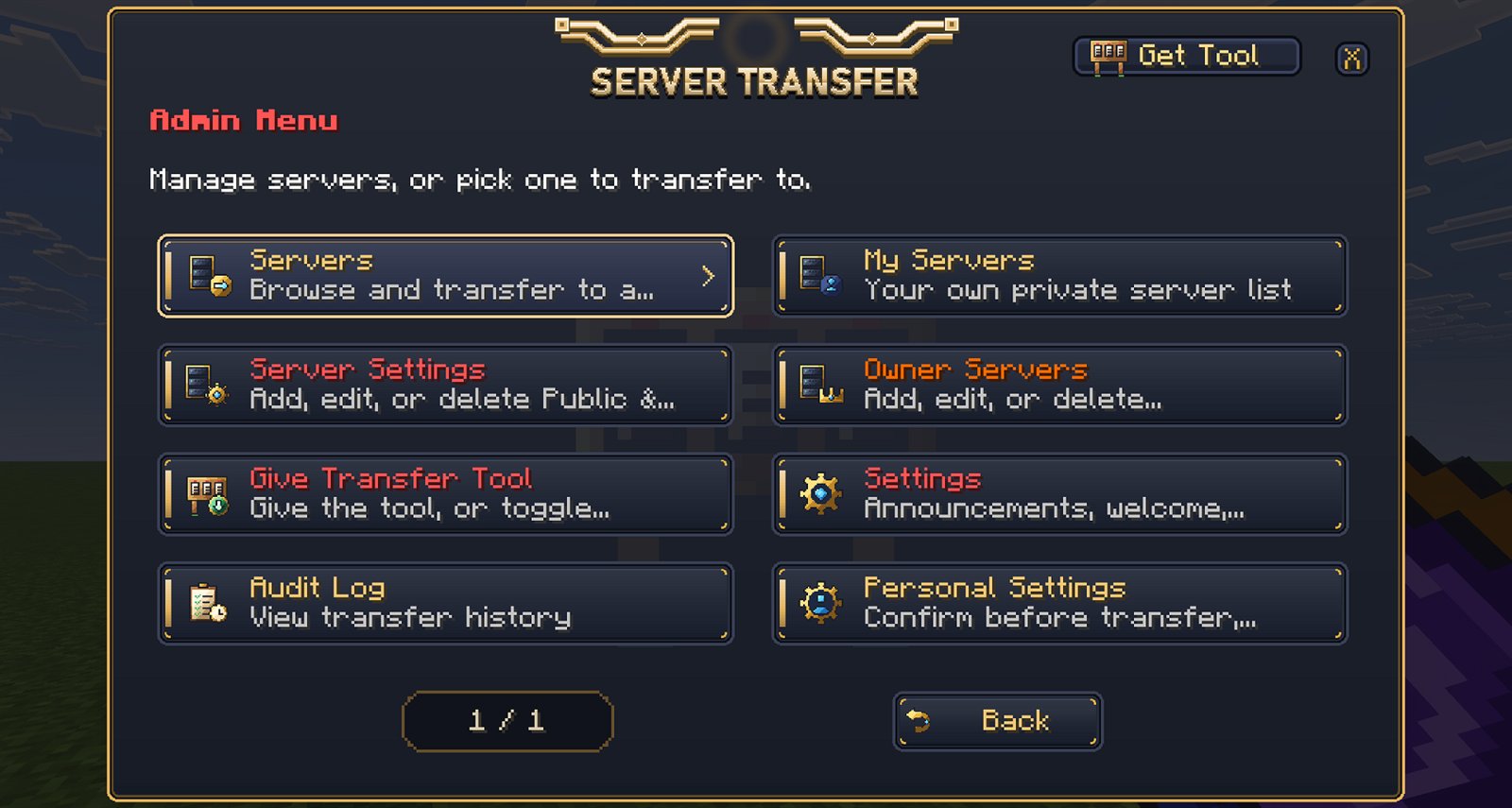
/servers · /uistt · /getstt | Open the server list or the menu, or get the Server Transfer Tool. |
/myservers · /addmyserver <name> <host> <port> ["note"] | Your private server list. Also /editmyserver, /deletemyserver, /movemyserver <name> <up|down>, /setmyserverimage <name> <0-10>. |
/confirmtransfer <on|off> | Ask before every transfer. |
/addserver <name> <host> <port> <public|staff|owner> ["note"] admin | Add a server to the list. Also /editserver, /deleteserver, /moveserver, /setserverimage. |
/serversettings · /adminsettings admin | Server and module settings menus. |
/setwelcome "message" · /clearwelcome admin | The welcome message. |
/announce <everyone|staff|admin|owner> <on|off> admin | Who is told when someone transfers. |
/givetool <player> · /autogive <on|off> admin | Give the tool, or give it automatically on first join. |
/personalservers <on|off> · /personalserverlimit <n> | Turn personal lists on or off, and limit their size. |
/largeserverbuttons <on|off> owner | Show 4 large server buttons per page instead of 8. |
/auditlog [player] staff | Every transfer, by player. |
CoreGuard
Block logging like Java's CoreProtect. CoreGuard records who placed or broke blocks, opened containers, took items, and caused explosions or fires. Inspect any block, look up what happened in an area, and roll it back.
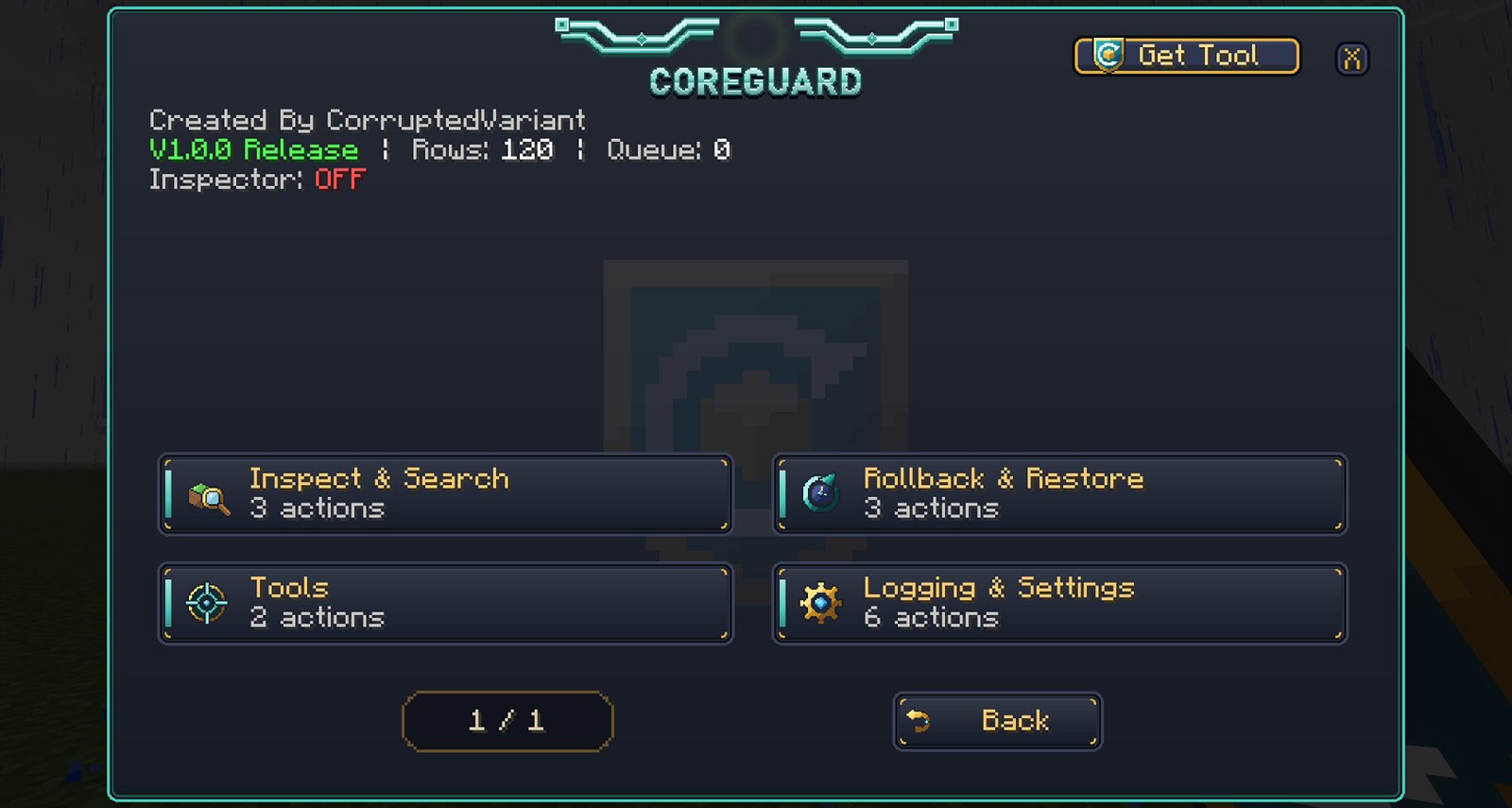
The inspector
Get the CoreGuard Shield (/cg give) or toggle inspect mode (/cg inspect). Then tap or break a block to see its history, or use a container to see who took what.
/cg menu · /cg help [topic] | Menu and help. |
/cg inspect · /cg give | Inspect mode, or get the shield. |
/cg lookup <params> (/cg l) | Search the history. /cg lookup <page> pages through results. |
/cg near | Recent changes around you. |
/cg rollback <params> · /cg restore <params> | Undo changes, or put them back. |
/cg undo | Undo your last rollback or restore. |
/cg purge t:<time> | Delete old history, for example /cg purge t:30d. |
/cg config [option] [value] · /cg perms · /cg status | Settings, permissions and database health. |
Lookup and rollback parameters
u:<users> | Players, comma-separated. |
t:<time> | How far back, for example t:2h, t:3d or t:1w. |
r:<radius> | Area around you in blocks (r:#global for everywhere). |
a:<action> | Only some actions: block, +block, -block, container, click, kill, chat or session. |
i:<include> · e:<exclude> | Only, or never, these block types. |
#preview | Show what a rollback or restore would change without touching the world, then /cg apply or /cg cancel. |
Example: /cg rollback u:Griefer t:2h r:30 #preview previews undoing everything Griefer did within 30 blocks in the last two hours.
Multiverse
Extra worlds alongside your main one: void, flat and skyblock. Each world has its own spawn, rules, entry fee and access.
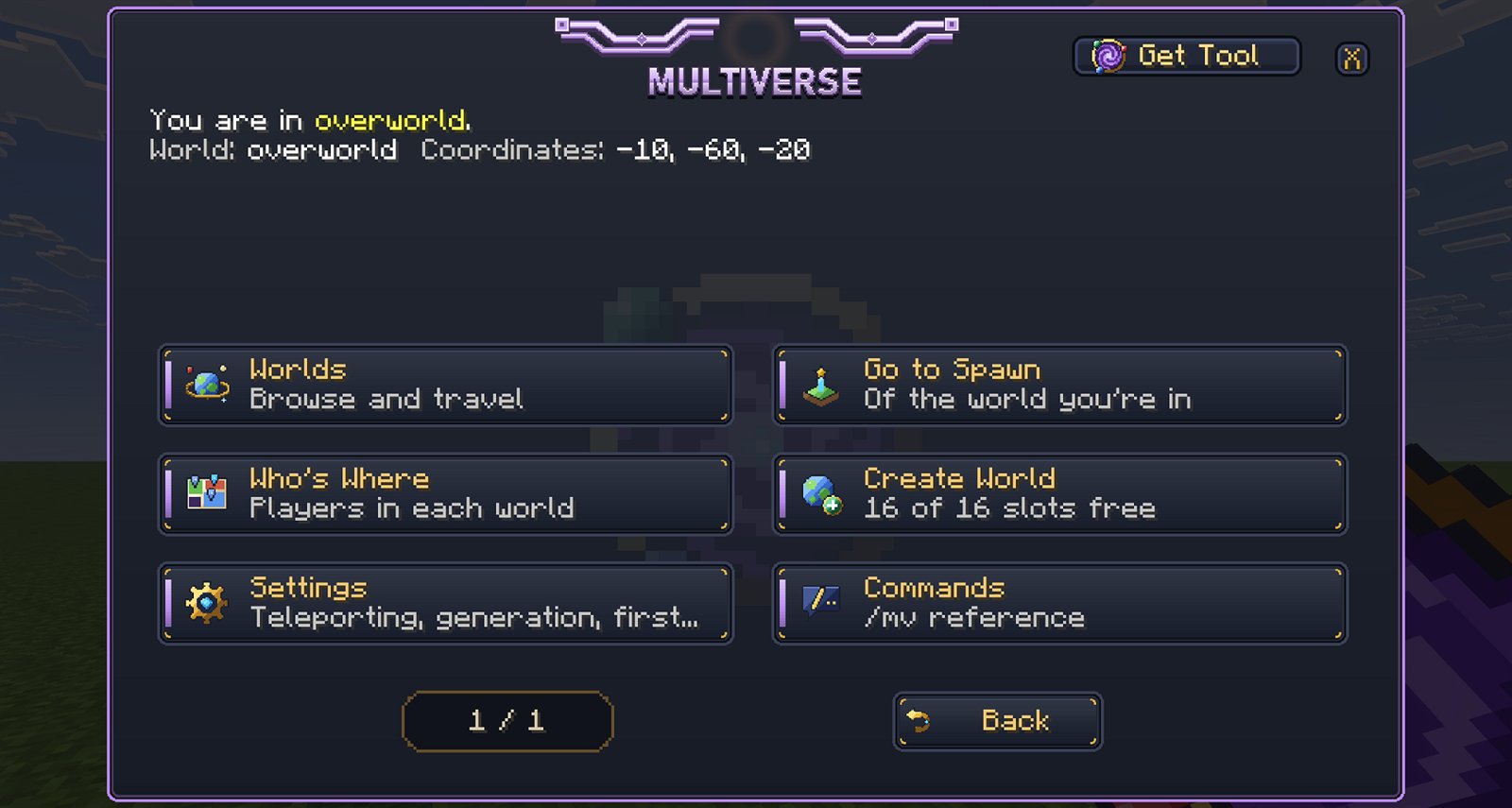
/mv menu · /mv list · /mv info [world] | Menu, the worlds you can see, and everything about one world. |
/mv tp [player] <world> | Go to a world. Also pl:<player> (to a player) or e:<world>:x,y,z (exact spot). |
/mv spawn [player] · /mv setspawn | A world's spawn. |
/mv create <name> <void|flat|skyblock> [layers] | Make a world. |
/mv delete <world> · /mv regen <world> · /mv confirm | Delete or start a world over. Both ask you to confirm. |
/mv modify <world> <set|reset> <property> [value] | Change a world property (below). |
/mv who [world] · /mv coords · /mv generators | Who's where, your position, and the world types. |
World properties
alias (display name), hidden, gamemode, pvp, hunger, auto-heal, spawning-animals, spawning-monsters, player-limit, entry-fee (Essentials money), access-tag (only players with this tag can enter), respawn-world, bed-respawn.
Multiverse makes void, flat and skyblock worlds. Importing existing worlds and normal terrain aren't available yet.
WorldGuard & Claims
Protected regions for staff, with flags for building, PvP, mob spawning, entry, explosions and more. Player land claims are built on the same system, with subclaims, member roles, claim-block allowances and a land market.
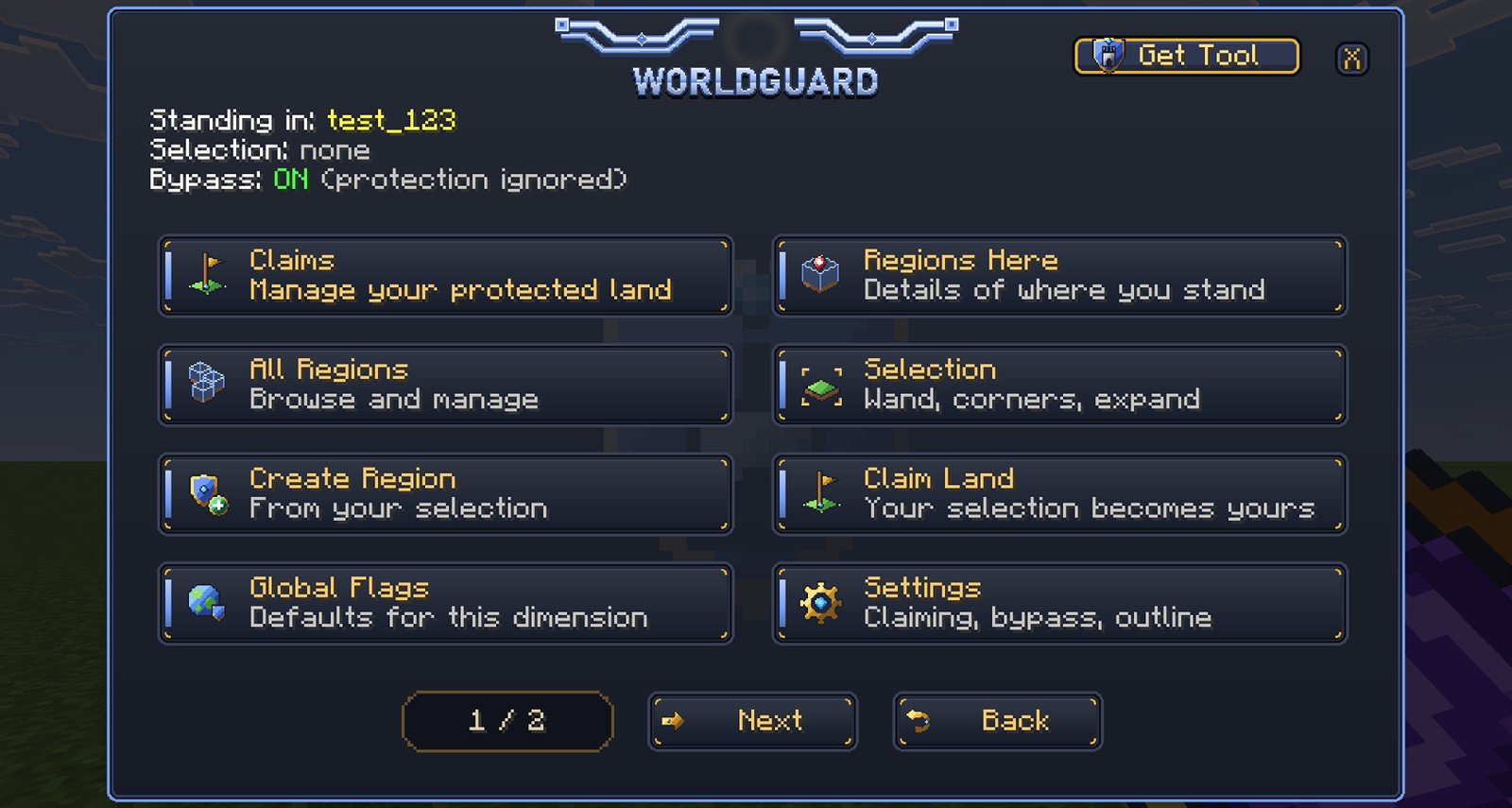
Player claims
- Open
/claims(or the Claims menu in Essentials), or get the claim wand with/claimwand. - Mark two corners. The claim covers the full height and is protected automatically.
- Add members and set their roles, make subclaims, or sell land on the land market.
Claims use claim blocks. Players get an allowance, ranks can add more, and owners can let players buy more with money from the shared economy.
Regions (staff)
/rg wand · /rg pos1 · /rg pos2 · /rg expand · /rg desel | Make a selection. expand stretches it from bedrock to the build limit. |
/rg define <id> [owners…] · /rg redefine <id> | Make a region from your selection, or move one. |
/rg claim "name" | Claim your selection, full height, with protection. |
/rg info [id] · /rg list [page] [-p player] · /rg select <id> | Look regions up. |
/rg flag <id> <flag> [-g group] [value] · /rg flags | Set a flag (no value clears it), and list every flag. |
/rg addmember · /rg addowner <id> <players|g:tag…> | Members and owners. Also removemember and removeowner (-a removes everyone). |
/rg setpriority <id> <n> · /rg setparent <id> [parent] | Higher priority wins where regions overlap; children inherit flags and members from their parent. |
/rg teleport <id> [-c] · /rg remove <id> [-f|-u] | Go to a region, or delete it. |
/rg bypass | Ignore protection yourself (worldguard.bypass). |
Flags
build (covers everything below that isn't set itself), block-break, block-place, use, interact, chest-access, use-anvil, sleep, respawn-anchors, lighter, ride, vehicle-place, vehicle-destroy, damage-animals, item-frame-rotation
pvp, mob-damage, invincible, fall-damage, firework-damage, item-pickup, enderpearl, chorus-fruit-teleport, potion-splash, wind-charge-burst, send-chat, receive-chat, game-mode
tnt, creeper-explosion, ghast-fireball, wither-damage, other-explosion, mob-spawning, deny-spawn, hostile-mobs, passthrough
entry, exit, exit-via-teleport, teleport, spawn, notify-enter, notify-leave, greeting, farewell, greeting-title, farewell-title
Example: protect spawn from everyone but staff with /rg define spawn, then /rg flag spawn build deny and /rg flag spawn pvp deny.
WorldEdit
Build big, fast. Select an area with the Selection Wand (left-click sets corner 1, right-click/use sets corner 2), then fill it, replace it, copy it, generate shapes, or paint with brushes. Every edit can be undone.
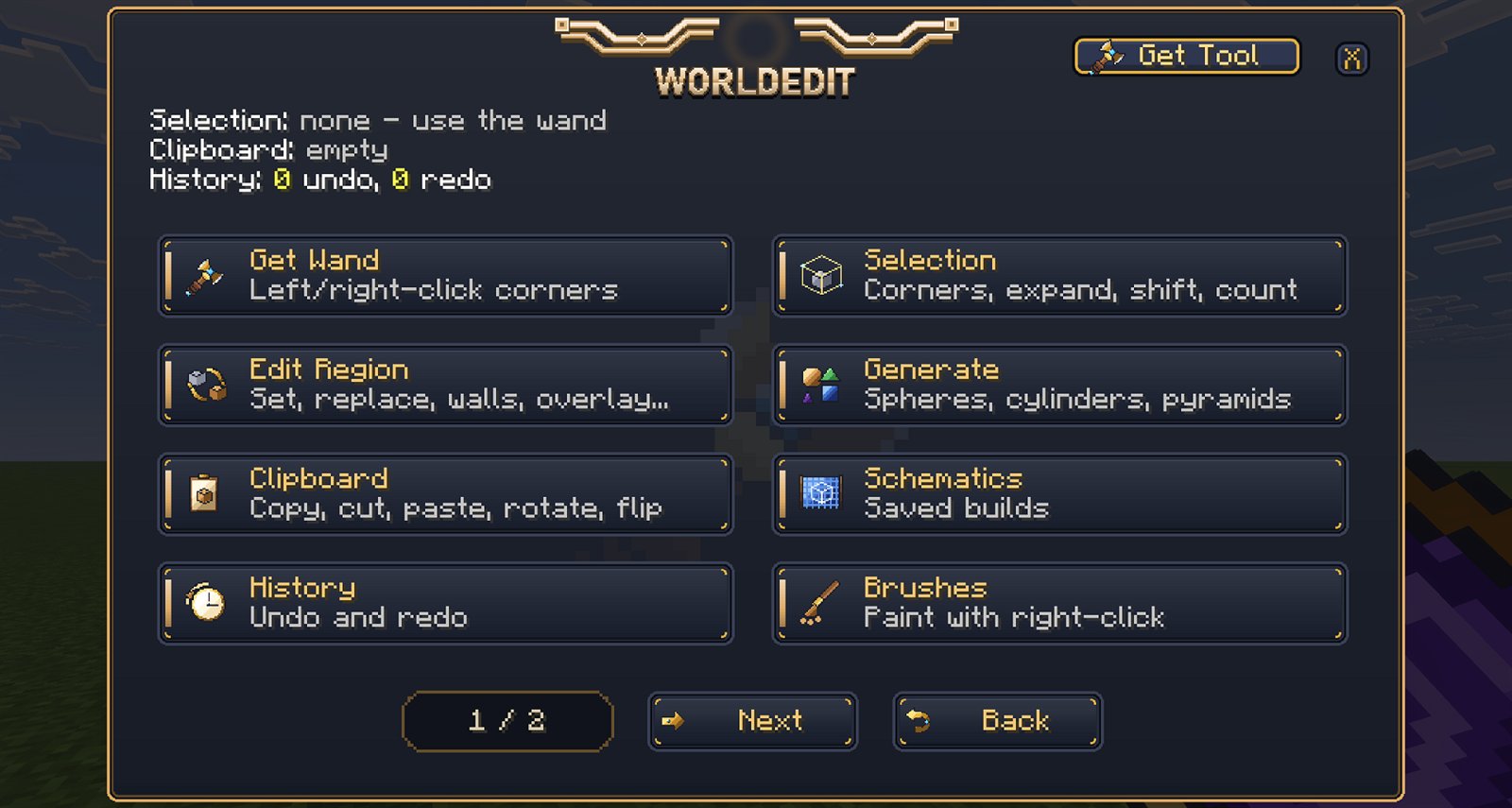
Commands are typed with one slash (/set stone, not //set). Patterns can mix blocks, for example stone,cobblestone.
| Selection | |
/wand · /pos1 · /pos2 · /hpos1 · /hpos2 | Corners at your feet (pos) or where you look (hpos). |
/expand · /contract · /shift · /outset · /inset | Grow, shrink or move the selection. /expand vert covers the full height. |
/size · /count <mask> · /distr · /chunk · /desel | Selection info, block counts, select your chunk, clear. |
| Region | |
/set <pattern> · /replace [from] <to> | Fill, or replace blocks. |
/walls · /outline · /overlay · /center · /line | Sides, all faces, a layer on top, the middle, a line from pos1 to pos2. |
/stack [count] [dir] · /move [count] [dir] [-s] · /naturalize | Repeat, move, or turn into grass, dirt and stone. |
| Clipboard & schematics | |
/copy [-e] · /cut [-e] · /paste [-a] [-o] [-s] | -e includes entities; -a skips air, -o pastes at the original spot, -s selects it. |
/rotate <90|180|270> · /flip [dir] · /clearclipboard | Turn or mirror the clipboard. |
/schem <save|load|list|delete> [name] | Schematics saved in the world. |
| Shapes | |
/sphere · /hsphere <pattern> <radius> | Solid or hollow spheres at you. |
/cyl · /hcyl <pattern> <radius> [height] | Cylinders. |
/pyramid · /hpyramid <pattern> <size> | Pyramids. |
| History, utilities & navigation | |
/undo · /redo · /clearhistory · /limit [blocks] | Undo and redo, and your block-change limit. |
/brush <sphere|cylinder|none> [-h] <pattern> [radius] [height] | Bind a brush to the item you're holding. |
/drain · /extinguish · /butcher [radius] [-a] · /removenear · /replacenear | Remove water/lava, put out fires, remove mobs, clear or replace blocks nearby. |
/up · /ascend · /descend · /thru · /jumpto · /ceil · /unstuck | Get around while building. |
/we · /wehelp [category] | The WorldEdit menu and command list. |
Permissions: worldedit.use covers every command group, or give groups one at a time with worldedit.<group>.
Anti-Cheat
Ten server-side checks for movement, combat, block actions and illegal items, such as banned items (command blocks, barriers…), overstacked items and over-enchanted gear. Each check can be switched on or off. Violations add up to violation levels, which lead to staff alerts, set-backs and, if you choose, bans.
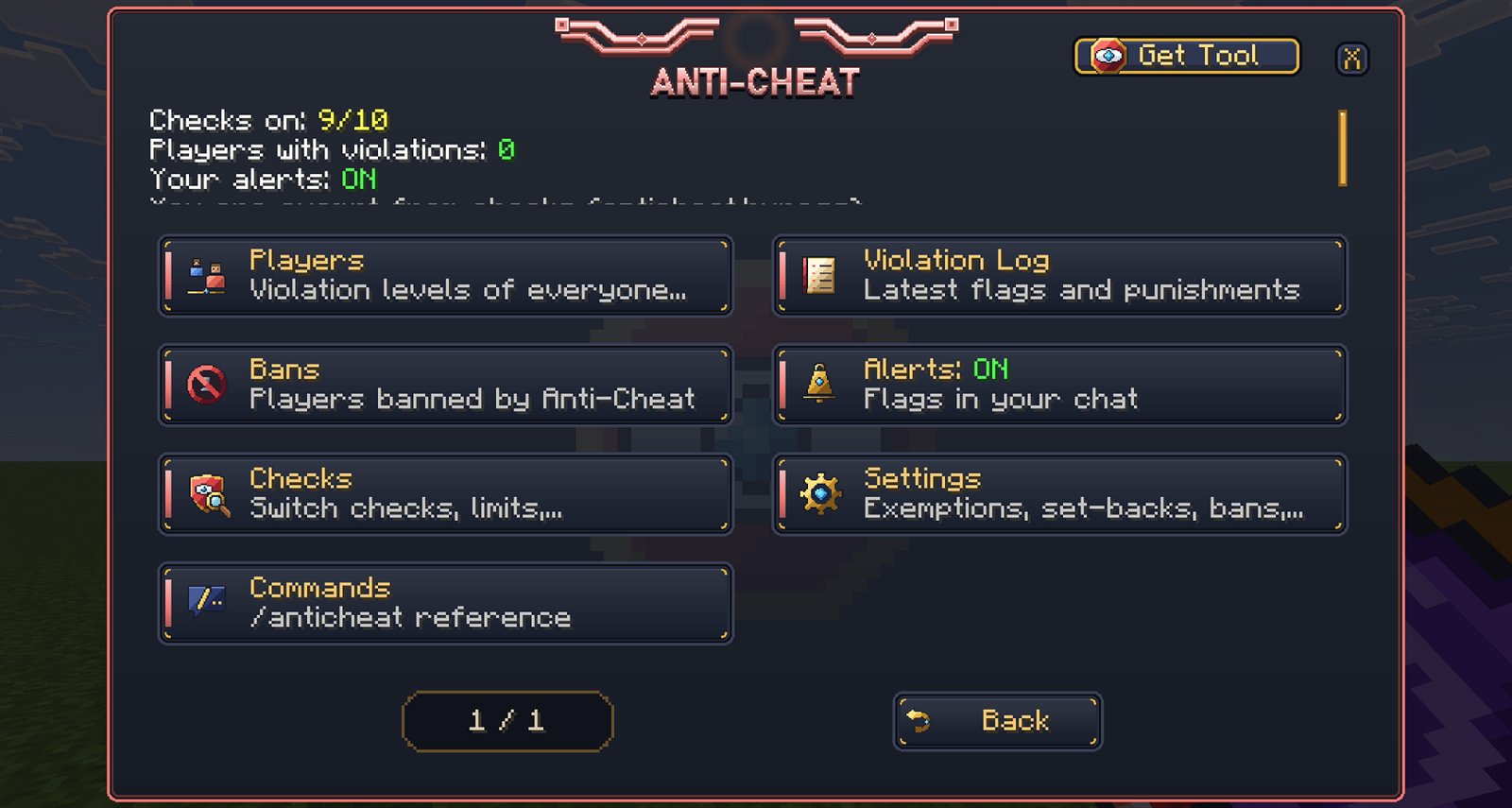
/anticheat menu · /anticheat help | Menu and help. |
/anticheat alerts | Turn your own alert feed on or off. |
/anticheat status [player] · /anticheat logs [player] | Violation levels and the latest violations. |
/anticheat check <check> on|off | Switch one check. |
/anticheat exempt · /anticheat unexempt <player> | Stop or resume checking a player. |
/anticheat reset <player> | Clear a player's violation levels. |
/anticheat bans · /anticheat unban <player> | Anti-Cheat bans. |
Tip: start with alerts only, watch for false positives on your server, then turn on set-backs and bans.
Clans
Players create and run clans, with roles (Member, Officer, Co-Leader, Leader), invites and join requests, clan and ally chat, a clan home, a shared bank, alliances and enemies, and leaderboards. Staff can manage any clan.
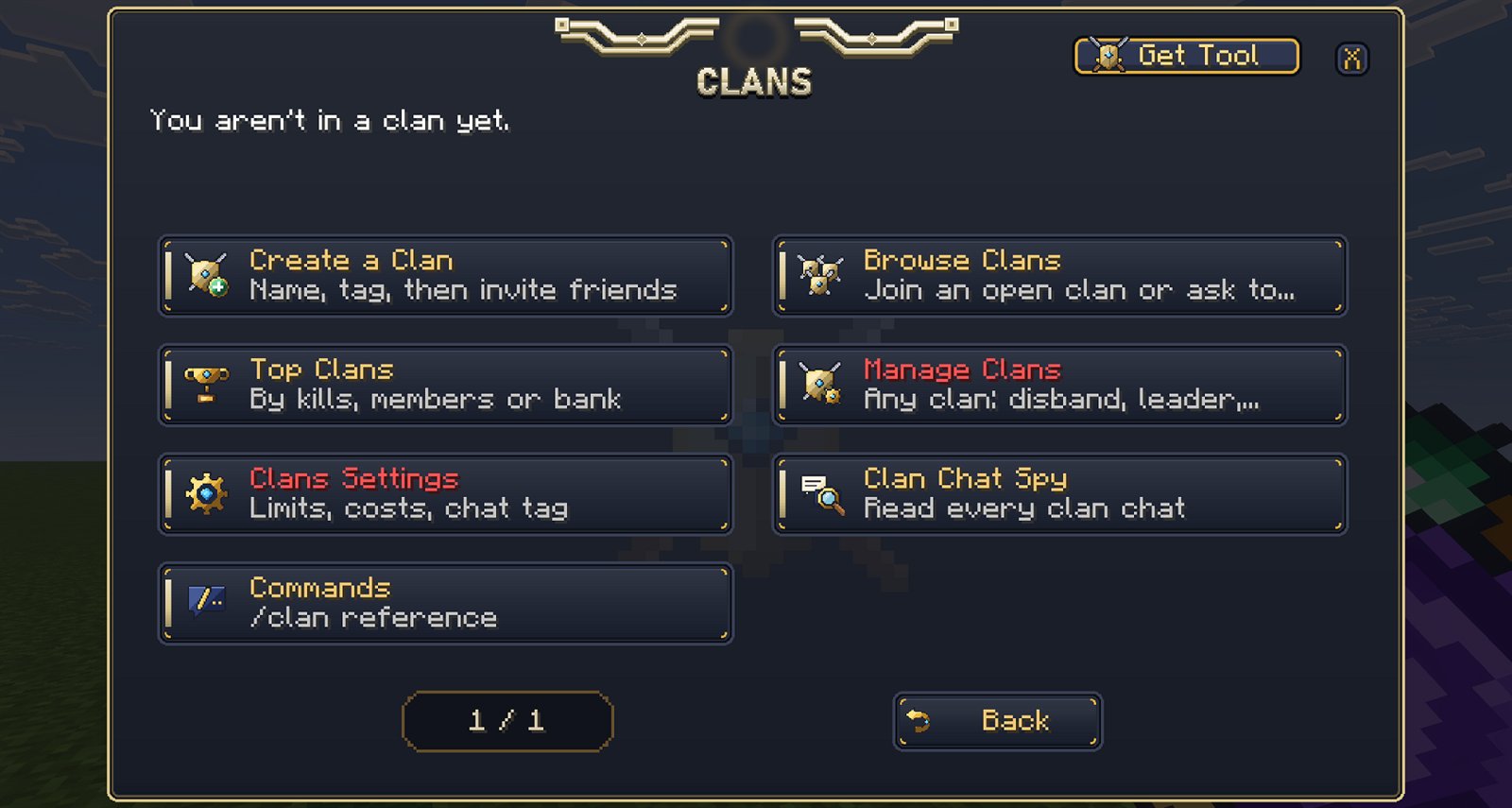
/clan create <name> <tag> | Start a clan (quote names that have spaces). |
/clan info [clan] · /clan members [clan] · /clan list · /clan top [kills|members|bank] | Clan info and leaderboards. |
/clan invite · /clan uninvite <player> · /clan accept · /clan deny [clan] | Invites. |
/clan join <clan> · /clan requests · /clan approve · /clan reject <player> | Join open clans, or ask to join. |
/clan leave · /clan kick · /clan promote · /clan demote · /clan leader <player> | Membership and roles. |
/clan sethome · /clan home · /clan delhome | The clan home. |
/clan deposit · /clan withdraw <amount> | The clan bank. |
/clan ally · /clan unally · /clan enemy · /clan unenemy <clan> | Alliances and rivals. |
/clan set <name|tag|color|description|motd|privacy|friendlyfire|allyfire> <value> | Clan settings. |
/clan perm <invite|kick|home|bank|ally|settings> <role> | The lowest role allowed to do each thing. |
/clan chat [clan|ally|public] · /cc · /ca | Where your chat goes; quick clan and ally chat. |
/clan disband confirm | Delete your clan. |
/clan spy · /clan admin … staff | Read every clan chat; manage any clan. |
Kits
Make kits straight from your inventory. Players can preview a kit before claiming it. Kits can have cooldowns, be one-time rewards, or need a permission.
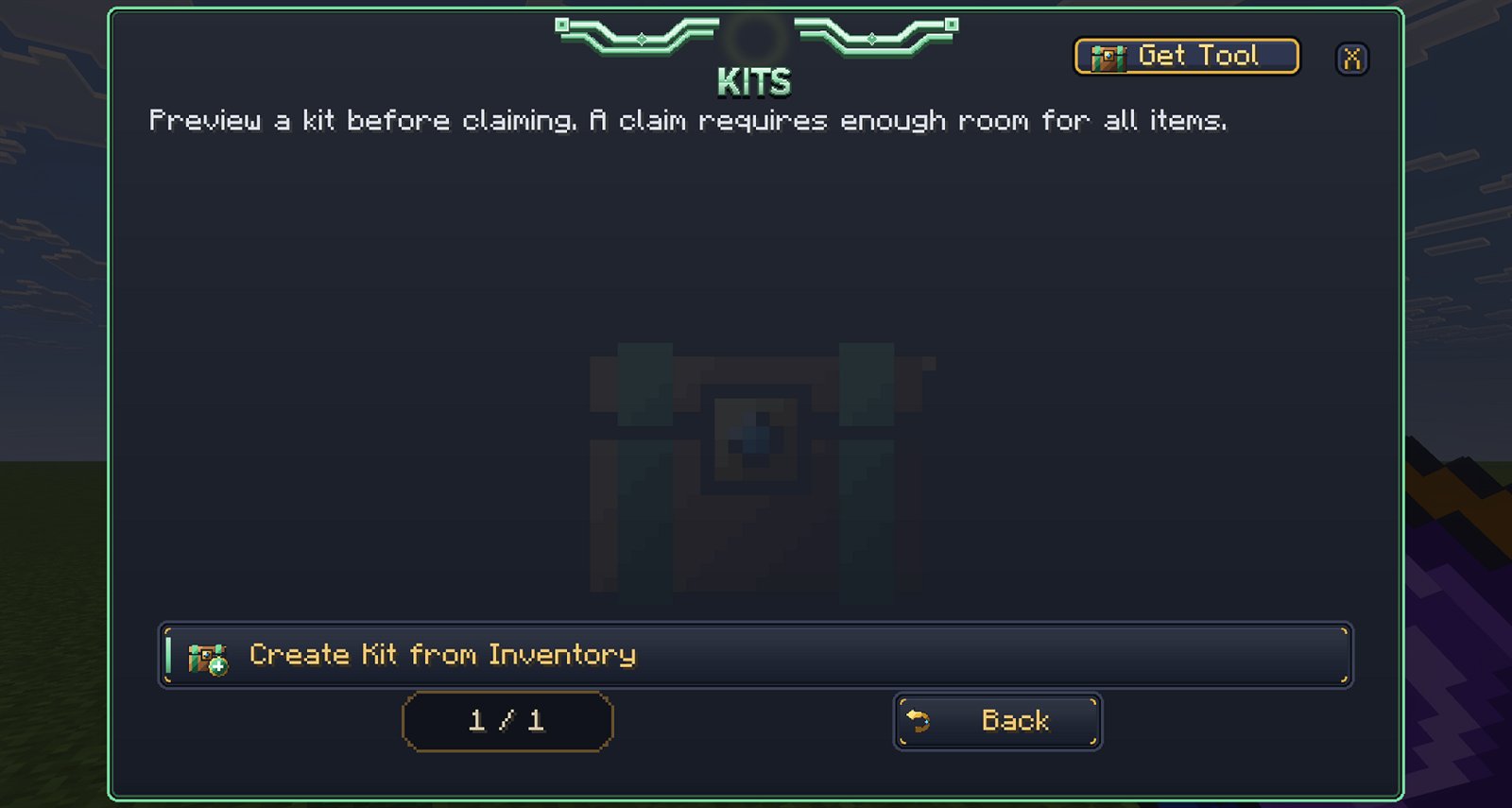
/kits · /kit [id] | Browse kits, or claim one by its ID. |
Permissions: kits.use to open kits, kits.admin to create and edit them.
Jobs & Quests
Jobs (Miner, Farmer, Hunter…) pay players from the shared economy as they play. There are also daily quests, a quest board and leaderboards.
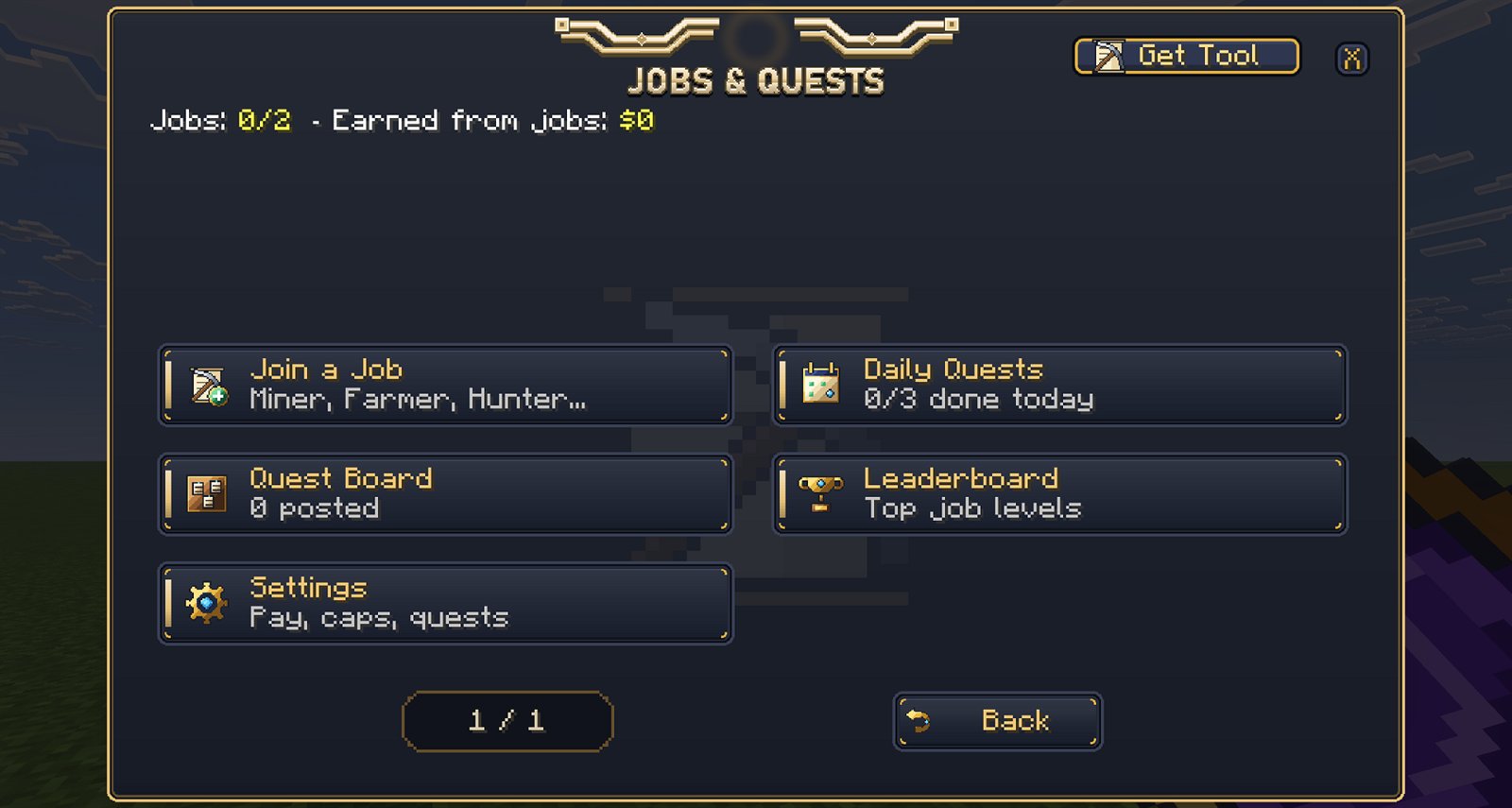
/jobs · /quests | Your jobs, daily quests, the quest board and the leaderboard. |
Logs
One action log for every module: staff actions, punishments, economy changes, claims and more. There's also a join/leave rollcall, a staff activity overview and a storage health check that shows how much world storage Admin Core is using.
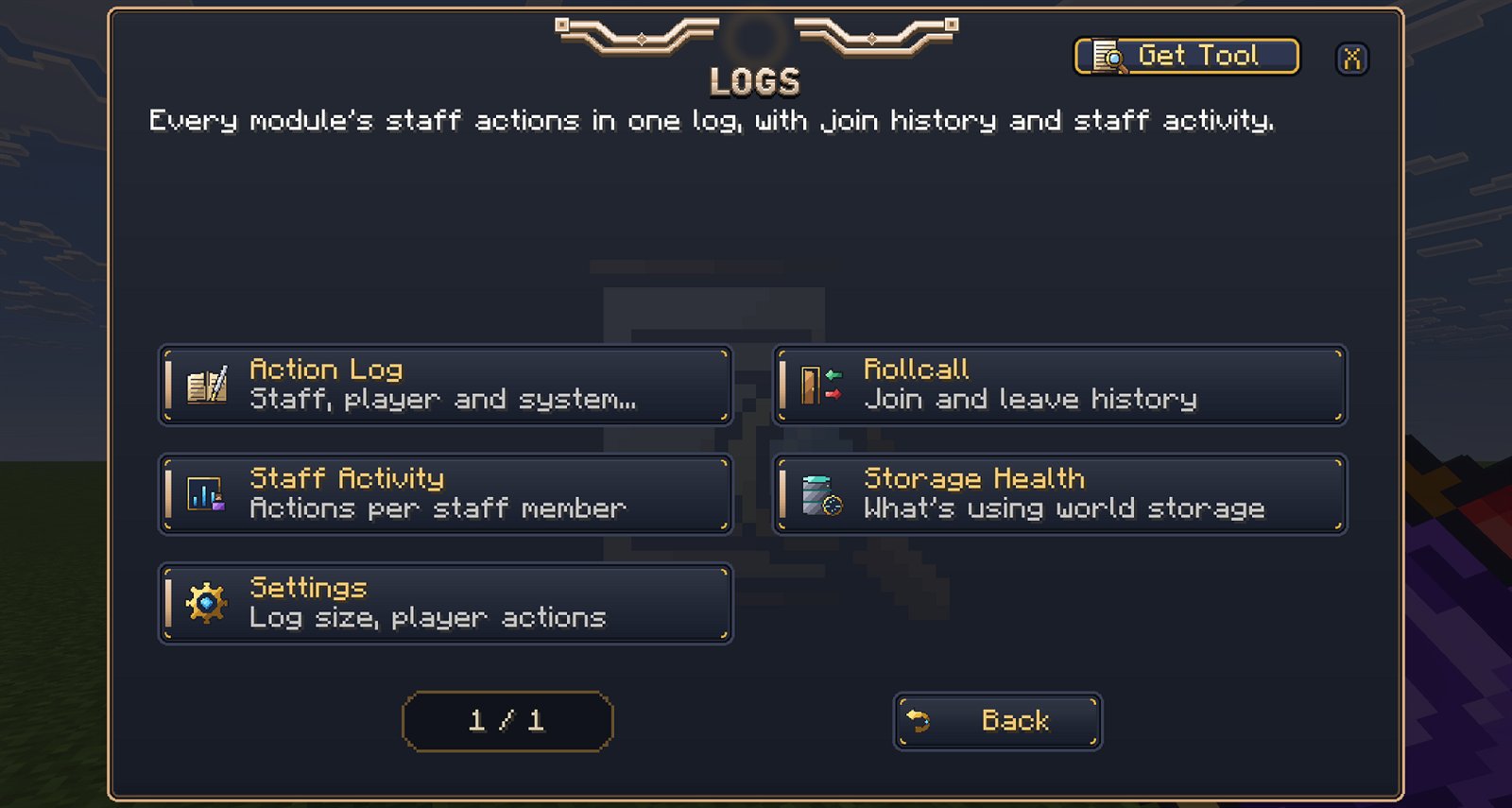
/logs | Open Logs. |
RanksCore
The permission system behind everything (formerly PermissionsCX). Groups hold permission nodes; players get groups; groups can inherit from other groups. Nodes can be timed or limited to one world, and * wildcards are supported. RanksCore also handles chat formatting (prefix, suffix, name and chat colours), a rank shop, and automatic rank-ups by playtime or money. It can't be turned off: every other module depends on it.
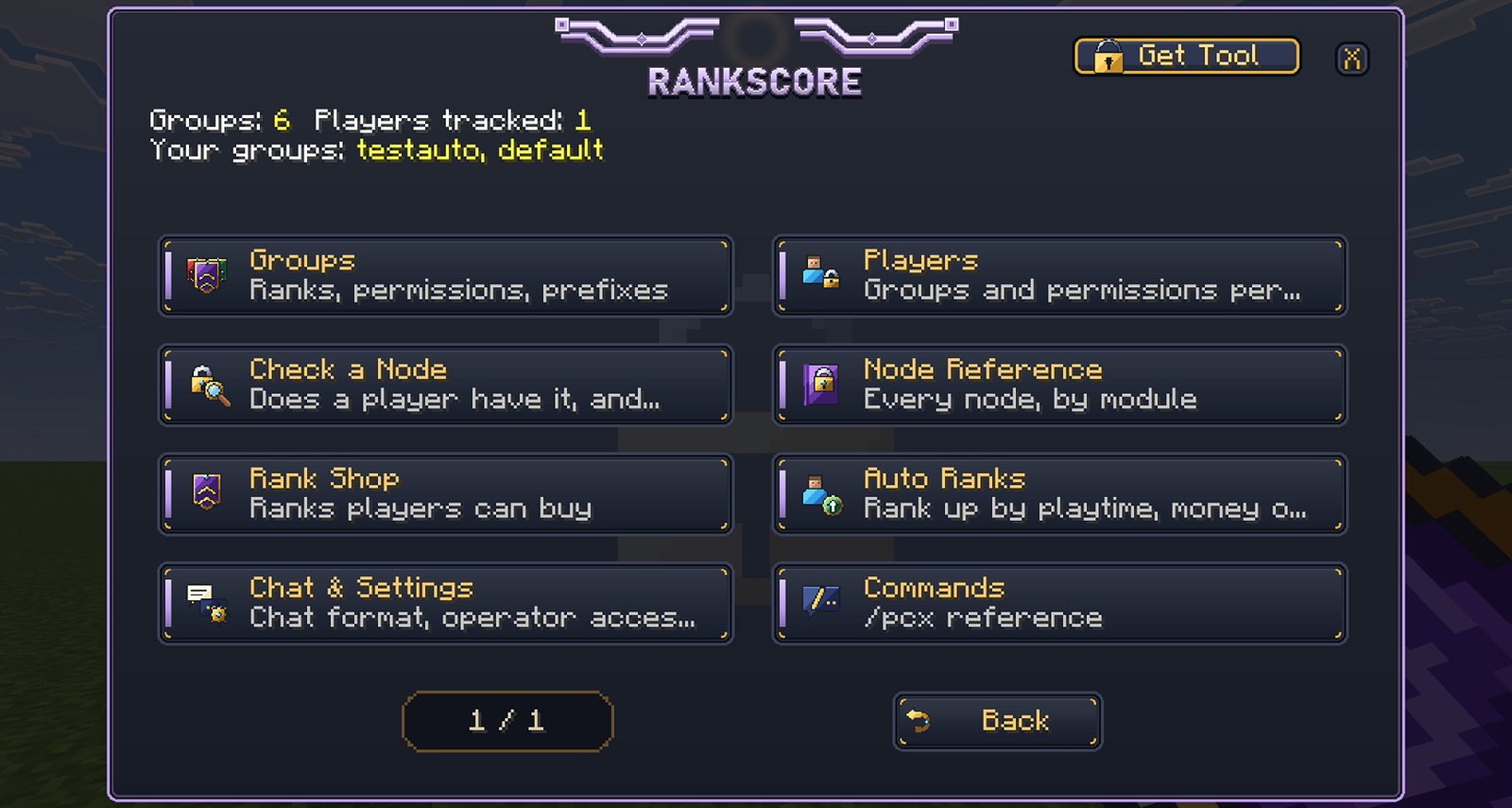
The menu has a per-module permission editor. Pick a group, pick a module, and set each node to Inherit, Allow or Deny. Your changes are kept as you move between pages and are saved together at the end.
/pcx menu · /pcx help | Menu and help. |
/pcx groups · /pcx users | List groups, and players with their own groups or nodes. |
/pcx group <g> create [parent] · delete | Make or remove a group. |
/pcx group <g> add|remove <node> [time] [world] | Grant a node (or -node to deny it). |
/pcx group <g> parents add|remove|set <groups…> | Inheritance. |
/pcx group <g> set prefix|suffix|namecolor|chatcolor|weight|tag|ladder|default <value> | Group look and order. |
/pcx group <g> option <key> [value] | Options, for example essentials.home.limit 5. |
/pcx user <name> group add|remove|set <g> [time] [world] | Give a player a group, optionally for a time or in one world. |
/pcx user <name> add|remove <node> [time] [world] | Give a player a node directly. |
/pcx user <name> prefix|suffix [text] · option | Per-player chat look and options. |
/pcx check <name> <node> | Does this player have this node, and why? |
/pcx promote|demote <name> [ladder] | Move a player up or down a rank ladder. |
Useful nodes
admincore.owner: owner access (switch modules on and off, core settings). Operators always have it.*: everything.worldedit.use,worldguard.bypass,kits.useandkits.adminare covered in each module's section.permissions.autoranks.exempt: never rank up automatically.
Modules screen
Owners turn whole modules on and off here. Changes apply straight away with no reload, and a module's data is kept while it's off, so turning it back on brings everything back. RanksCore is always on.
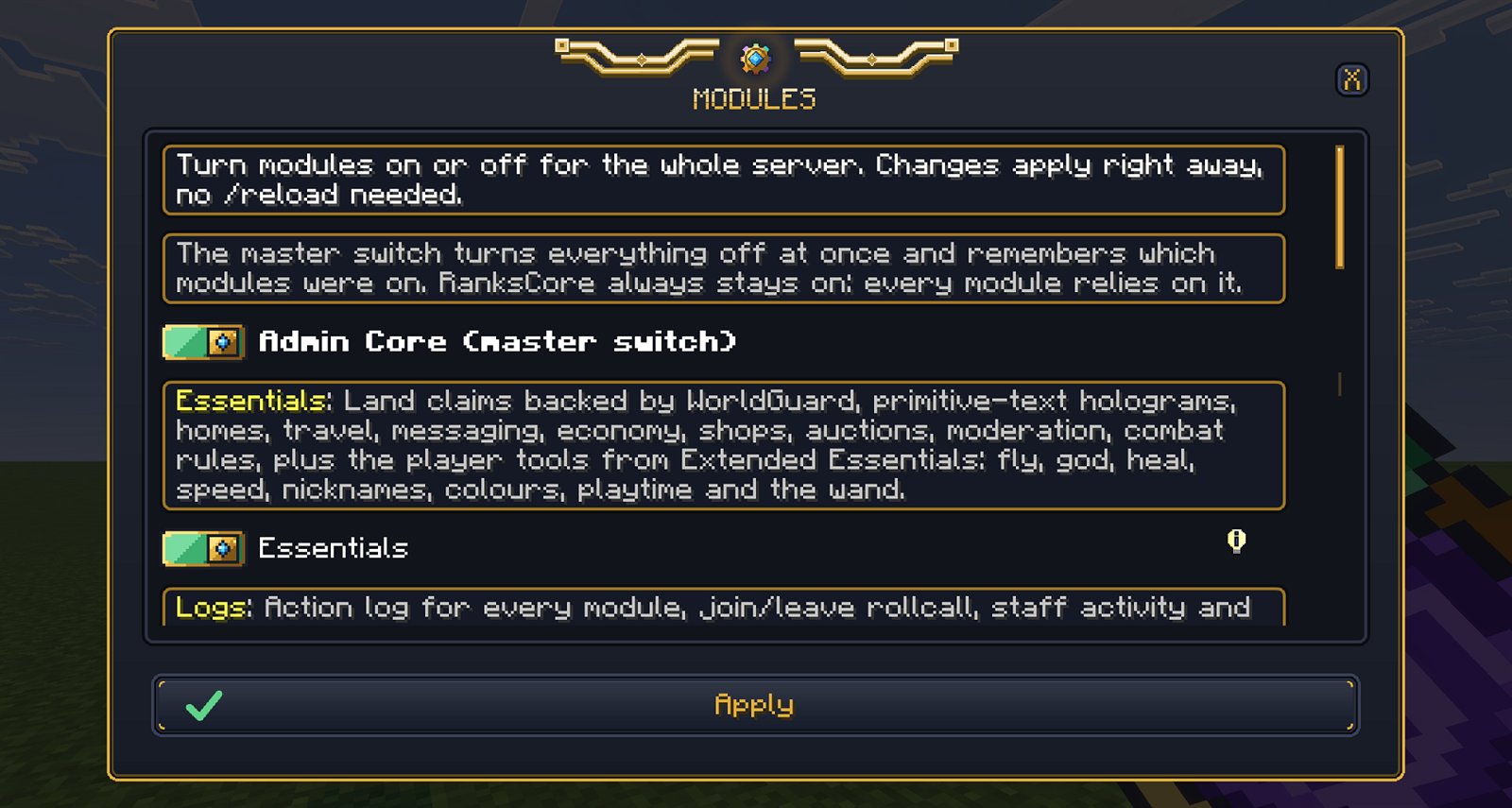
Commands: /module (owners). Players never see tiles, buttons or commands for modules that are off.
Data Migration
Moving to Admin Core from other addons? Data Migration brings their settings, permissions and player data with you. Nothing changes until you've reviewed what will be imported and pressed Import. Where names clash, for example a home or warp with the same name or a rank that matches an existing group, you choose what happens.
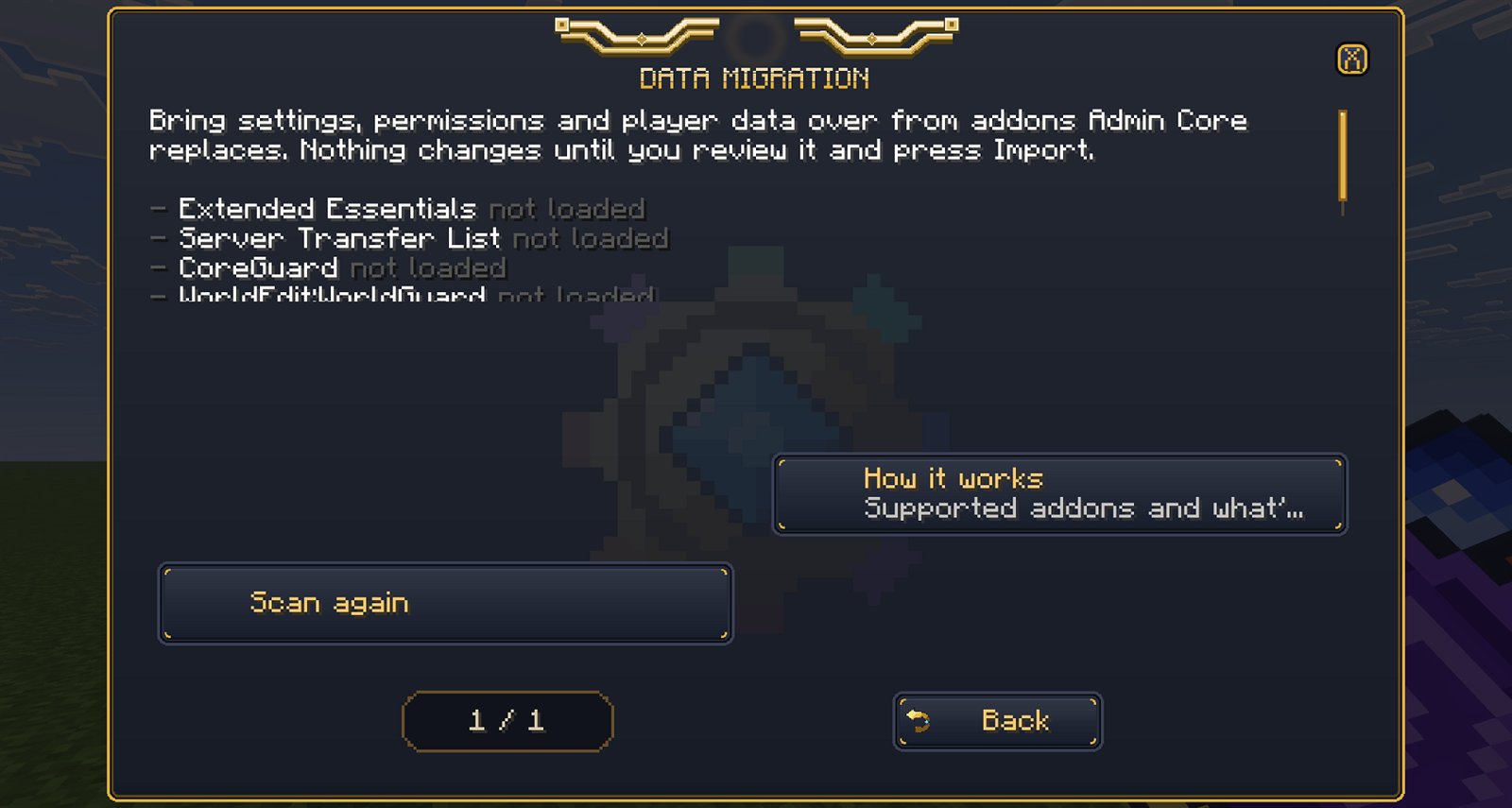
Supported addons
- Extended Essentials, Server Transfer List and CoreGuard: versions with the Admin Core exporter.
- Emerald Essentials: needs the EXPORT ONLY build.
- WorldEdit:WorldGuard: with the Admin Core export hook (regions).
- Admin Tools and Spectral Essentials: load their Import Bridge in place of the original addon.
How to migrate
- Back up the world.
- Load the old addon (export-enabled version) together with Admin Core, and open Data Migration as an operator.
- Press Scan again if an addon shows "not loaded". Then pick what to bring over (homes, warps, ranks, claims, server list, block history, logs, settings), review it and press Import.
- Remove the old addon once you've checked everything arrived.
Personal Settings
Every player has their own settings, at the bottom of the main menu:
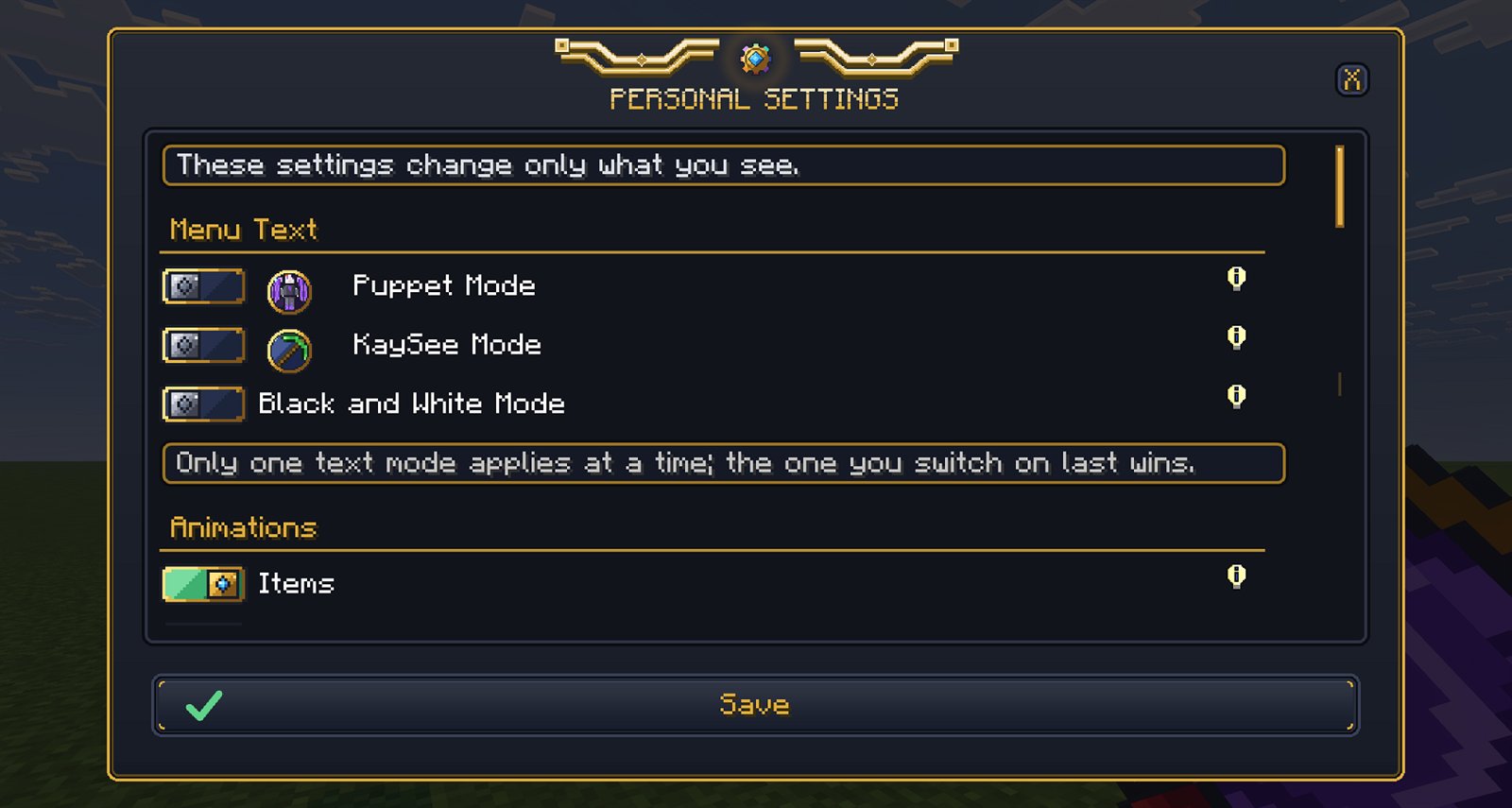
- Menu text: Normal, Puppet, KaySee or Black and White mode.
- Animations: turn animated item icons and menu animations on or off. Owners can turn them off for everyone with the server animation policy, which helps slower devices.
- Essentials Quick Access: shortcuts on the Essentials page.
- Blocked players: block someone from messaging or sending you requests.
About
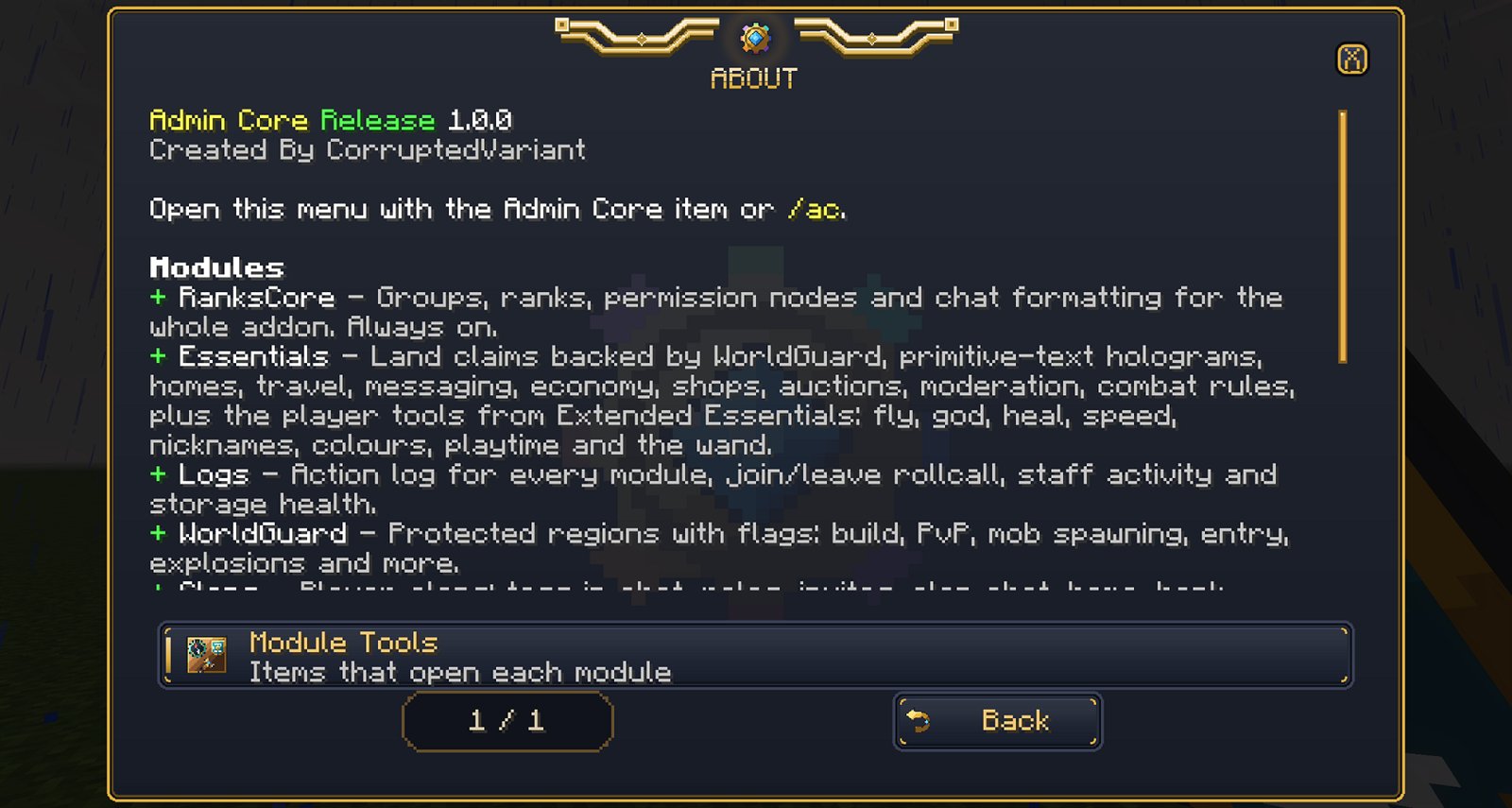
The About page shows your Admin Core version and a summary of every module. If you report a bug, include the version shown here.
FAQ & troubleshooting
Nothing happens: no menu, and no /ac command.
Check that Beta APIs is turned on for the world, that both packs are active, and that the game and server are on 1.26.50 or newer. On a dedicated server, look in the server console for script errors when it starts.
I installed 1.0.0 but still see a Beta version in the menu.
The Alpha and Beta builds used higher version numbers, so Minecraft keeps preferring them. Remove the old Admin Core packs from the world and from your game's packs, then add 1.0.0 again.
Players can't see a module or button.
Either the module is turned off (see Modules), or their rank doesn't have the permission node. Use /pcx check <player> <node> to see why.
A command says "unknown command".
It may have a module prefix because its name is taken by a vanilla command, for example /ess_tp instead of /tp. Type / and the start of the name to see the list, or use the menu.
/fly doesn't work.
Flight in Survival needs the world's Education Edition option turned on.
Can I use just one part, like CoreGuard?
Yes. Turn off every module you don't need on the Modules screen. Some parts (Extended Essentials, Server Transfer List and CoreGuard) are also released as separate addons.
Does it work with a controller?
Yes. LB/RB (L1/R1) change pages in every menu.
Are these real Java plugins?
No. WorldEdit, WorldGuard, Multiverse, CoreGuard and RanksCore are Bedrock versions inspired by the Java server tools. They're written for Bedrock and don't load Java plugins.